
Overview

Data Flow Task Plus is an SSIS control flow task and it is an extension of the standard Microsoft Data Flow Task.
Data Flow Task Plus 1.4 allows setup of dynamic data flows. The dynamic setup options can be controlled with parameters from outside. This feature lessens the need to manually open and modify the data flow design when new source and destination columns have to be accommodated.
Data Flow Task Plus also supports features similar to the features implemented for Script Task Plus. Data Flow Task Plus allows exporting of data flow logic and reuse in other packages. Keeping your SSIS data flow logic separate from your package helps you keep track of the changes independently in your source control system. Data Flow Task Plus also provides a customizable user interface for setup of your data flow. You customize the data flow setup dialog by implementing an SSIS script, which is part of the data flow task.
These features will help you be more productive and allow you to componentize your common data flow logic.
Setup 1.4
The task setup is similar to the Script Task Plus dialog. It has the following user interface elements:
- Setup tab - select data flow initialization parameters. These data flow parameters will be initialized before the data flow is executed. The page configuration is prepared with .NET attributes in the initialization script.
- Dynamic tab - specifies dynamic data flow options. For details check below.
- Advanced tab - specifies advanced task options.
- General page - specifies the data flow task name and description.
- Script page - specifies the data flow task script, which is used for Setup tab customization.
- Expressions page - specifies standard SSIS expressions.
 - exports the SSIS data flow to an external file (.dfx).
 - links to the SSIS data flow from an external file (.dfx). The link can be removed by pressing the button again.
Setup (1.3 and older)
The task setup is similar to the Script Task Plus dialog. It has the following user interface elements:
- General page - specifies the data flow task name and description.
- Initialize page - selects the data flow initialization parameters. These data flow parameters will be initialized before the data flow is executed. The page configuration is prepared with .NET attributes in the initialization script.
- Script page - specifies the data flow task script, which is used for Initialize page customization.
- Expressions page - specifies standard SSIS expressions.
- - exports the SSIS data flow to an external file (.dfx).
- - links to the SSIS data flow from an external file (.dfx). The link can be removed by pressing the button again.
Dynamic Data Flow 1.4
The dynamic data flow technical documentation is published here.
Use Cases
In many integration scenarios ETL developers may find it challenging to automate their SSIS data flows with statically-defined metadata. COZYROC Data Flow Task Plus provides the ability to acquire the metadata and map the columns at runtime, enabling the development of much more elegant solutions.
Here are several common use cases for using dynamic data flows created with Data Flow Task Plus (DFT+):
- If you are performing the same ETL operations for a lot of files, tables, entities, etc., DFT+ can be used in a loop to process any number of sources and destinations. Variables and expressions can be used to dynamically update names of tables, files, entities, sheet names, etc. each time through the loop. The column metadata will be updated and the columns will be mapped each time through the loop. Example scenarios are when, on a regular basis, you need to back up multiple files or need to generate multiple files from database tables or other types of sources.
- Another use case for DFT+ within a loop would be for migrating data from an on premises version of an application to the cloud-based version of an application. An example of this would be migrating from Dynamics CRM on premises to Dynamics 365 in the cloud. Variables and expressions would be used to loop through each entity to copy the data from on premises to the cloud. Tip: you will need to set the proper order to migrate the entities so that there are no failures due to prerequisites not being in place.
- Dynamic data flows can be useful even without a loop, e.g. in situations where the metadata changes frequently and its inconvenient to rework and redeploy an SSIS package that often. This use case does not require setting up variables and expressions. DFT+ would simply pick up the new or changed metadata when the package is executed.
- Another use case that does not require a loop would be to configure a somewhat generic package that can be used for any source/destination pair. For instance, you might want to have a generic package that copies data between tables. You would use variables and expressions to set up the specific table to copy data from and the specific table to copy data to.

Demonstration
Quick Start
Requirements
In order to complete this task you must have Microsoft SQL Server 2017 Enterprise Edition or Developer Edition, and your computer must have the following minimum requirements:
Operating Systems
- Windows 10 version 1507 or higher: Home, Professional, Education, and Enterprise (LTSC and S are not supported)
- Windows Server 2016: Standard and Datacenter
- Windows 8.1 (with Update 2919355): Core, Professional, and Enterprise
- Windows Server 2012 R2 (with Update 2919355): Essentials, Standard, Datacenter
- Windows 7 SP1 (with latest Windows Updates): Home Premium, Professional, Enterprise, Ultimate
Hardware
- 1.8 GHz or faster processor. Dual-core or better recommended
- 2 GB of RAM; 4 GB of RAM recommended (2.5 GB minimum if running on a virtual machine)
- Hard disk space: up to 130 GB of available space, depending on features installed; typical installations require 20-50 GB of free space.
- Hard disk speed: to improve performance, install Windows and Visual Studio on a solid state drive (SSD).
- Video card that supports a minimum display resolution of 720p (1280 by 720); Visual Studio will work best at a resolution of WXGA (1366 by 768) or higher.
Create Source and Destination Connections
Before we can begin to setup the source and destination components, we will need to create two Connection Managers. Since our source and target is a SQL Server database, we will use OLE DB Connection for both Connection Managers.
- Right-Click in the Connection Manager and Select New OLE DB Connection from the pop-up menu option.
- When the Configure OLE DB Connection Manager dialog appears, Click the New button.
- Once the Connection Manager dialog appears, Type or Select the Server Name.
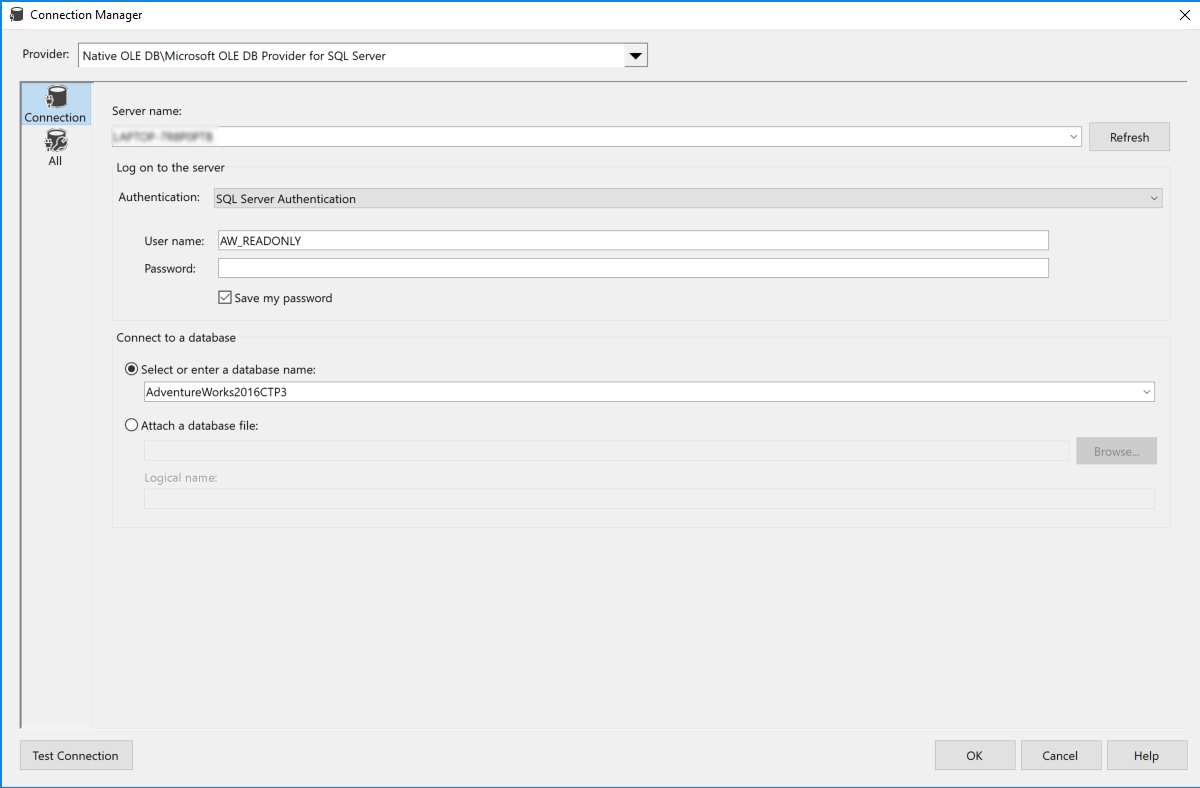
- Then, Select the Database Name and Test Connection.
- Click the Ok button to create the Source Connection.
- Repeat steps 2 through 5 for the Destination Connection.
- After the Source and Destination Connections have been created, rename them to SQLSourceConn and SQLTargetConn.

Setup Data Flow – OLE DB Source Component
- Drag and drop the Data Flow Task Plus from the SSIS Toolbox to the design surface.
- Before we add the OLE DB Source Component, set the DelayValidation of the Task Properties to True (See Figure-03) by right clicking on the Task and selecting “Properties” from the drop-down menu.
Note: by setting this property to True, we are delaying validation of the task until run-time. Otherwise, errors and warnings will be generated before the package is actually executed.

- Right-Click the OLE DB Source Component to open Show Advanced Editor.
- Select the SQLSourceConn that we created earlier from the OLE DB Connection Manager (See Figure-05).
- Click the Component Properties tab. Then Select the SQL Command from the Data Access Mode.

-
Enter the following SQL Statement in the SQL Command Text box (See Figure-06).
SELECT * FROM SALES.CUSTOMER
Note: we are using a SQL query to retrieve data from the OLE DB data source because in the next two articles, I will show how we can use variables and expressions to modify the SQL Query at run-time and make the package more dynamic.

- Click the Input and Output Properties tab.
- Select the External Columns from the Inputs and Outputs box.
- Click the Add Column to add the THUNK_COLUMN.
- Set the Data Type to string [DT_STR] and Length of the Data Type Properties to 50.
- Repeat the steps for the Output Columns and set the Data Type and Length accordingly (See Figure-07).

Note: to ensure that the component passes validation, the THUNK_COLUMN is added to both Input and Output Properties. The THUNK_COLUMN is used as a dummy column, which is removed at run-time and replaced with the available columns during execution.
- Click the Column Mapping tab to map the External Column to Output (See Figure-08).
- Click the OK button to accept the changes.

Setup Data Flow – OLE DB Destination Component
- Add the OLE DB Destination Component from the SSIS Toolbox, by dragging the component to the design surface.
- Set the ValidateExternalMetadata property for OLE DB Destination Component to “False” (See Figure-09) by Right-Clicking on the component and selecting “Properties” from the drop-down menu.
- Right-Click the OLE DB Destination Component to open Show Advance Editor.

- Select the SQLTargetConn that we created earlier from the OLE DB Connection Manager (See Figure-10).

- Click the Component Properties tab and Set the AccessMode to OpenRowset Using FastLoad and enter the table name, [dbo].[Src_Customer], in the OpenRowset text box (See Figure-11).

- Click the Input and Output Properties tab.
- Click the Add Column button to add the THUNK_COLUMN to the External Columns (See Figure-12).
Note: make sure the DataType and Length are the same as the Input Columns.
- Click the OK button.

- Click on the Control Flow tab
- Drag the connector arrow from OLE DB Source to the OLE DB Destination (See Figure-13).
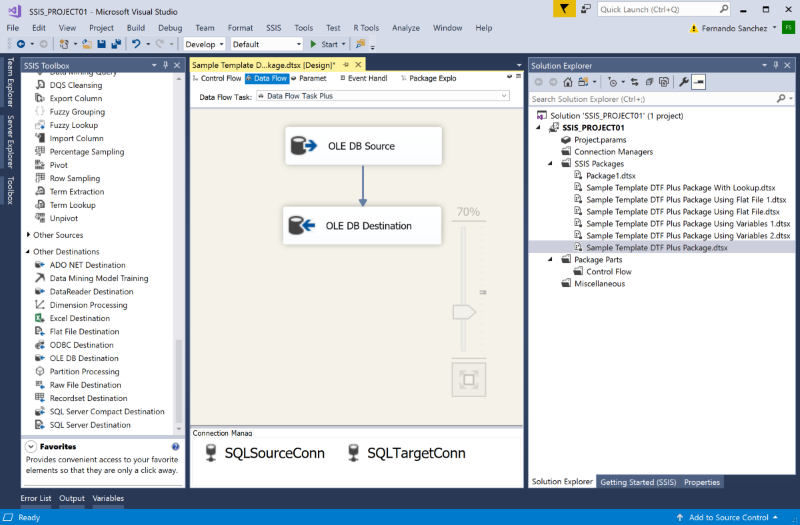
- Right-Click the OLE DB Destination Component to open Show Advance Editor again.
- Click on the Column Mappings to ensure that the Input Columns and Output Columns are mapped (See Figure-14).
- Click the OK button.
Note: if an error appears because of the mapping, open the editor again in advance mode and review the changes. When you close the editor, the error should have disappeared.

Control Flow – Enable Dynamic
Our last step in setting up the Data Flow Task Plus is to set the component to be processed dynamically. Enabling this property of the component triggers the collections of metadata for the source and destination to be determined at run-time.
- Click the Control Flow tab
- Double-Click the Data Flow Task Plus to open up the editor
- Click the Dynamic tab
- Expand OLE DB Source and Destination and set Enabled to True
- Click the OK button
- Click File from Menu and Save All.

Summary
In this Quick Start article, I have shown you How-To create an SSIS package using the Data Flow Task Plus that establishes a connection to an OLE DB Source to read the data from a local AdventureWorks2016CTP3 database and at run-time dynamically maps the source and destination columns to write the data to a different table in another database using the OLE DB Destination component.
Requirements
In order to complete this task you must have Microsoft SQL Server 2017 Enterprise Edition or Developer Edition, and your computer must have the following minimum requirements:
Operating Systems
- Windows 10 version 1507 or higher: Home, Professional, Education, and Enterprise (LTSC and S are not supported)
- Windows Server 2016: Standard and Datacenter
- Windows 8.1 (with Update 2919355): Core, Professional, and Enterprise
- Windows Server 2012 R2 (with Update 2919355): Essentials, Standard, Datacenter
- Windows 7 SP1 (with latest Windows Updates): Home Premium, Professional, Enterprise, Ultimate
Hardware
- 1.8 GHz or faster processor. Dual-core or better recommended
- 2 GB of RAM; 4 GB of RAM recommended (2.5 GB minimum if running on a virtual machine)
- Hard disk space: up to 130 GB of available space, depending on features installed; typical installations require 20-50 GB of free space.
- Hard disk speed: to improve performance, install Windows and Visual Studio on a solid state drive (SSD).
- Video card that supports a minimum display resolution of 720p (1280 by 720); Visual Studio will work best at a resolution of WXGA (1366 by 768) or higher.
Create and Configure the Package Variables
Before we can begin to create the Connection Managers for the source and destination components, we will need to create a few package variables. These variables will be used to store the name of the source and destination. The variables are then sourced in the expression to build the SQL query dynamically and set the destination, thus, making the package more dynamic at execution time.
- To set the scope of the variable to the package, Click anywhere on the design surface of the Control Flow tab.
- From the SSIS sub-menu, Click on Variables.
- When the Variables window appears, Click the Add Variable icon.
- After the new variable is added to the list, rename it accordingly (See Figure-02-01).
- Perform step 03 through 04 for the remaining variables.
Note: in addition to renaming the variable, you will need to set the data type, Expression, and default value.
| Name | Scope | Data Type | Value | Expression |
|---|---|---|---|---|
| gobjEtlTableMapping | Package | Object | System.Object | |
| gsSqlStatement | Package | String | Select * From sales.customer | "Select * From " + @[User::gsSrcTableName] |
| gsSrcTableName | Package | String | Sales.customer | |
| gsTrgTableName | Package | String | dbo.src_customer |

Create the Source and Destination Connection Managers
Now that we have created the necessary variables, we can continue to setup the source and destination components. We will need to create two Connection Managers. Since our source and target are SQL Server databases, we will use the OLE DB Connection for both Connection Managers.
- Right-Click in the Connection Manager and Select New OLE DB Connection from the pop-up menu option.
- When the Configure OLE DB Connection Manager dialog appears, Click the New button.
- Once the Connection Manager dialog appears, Type or Select the Server Name.


- Then, Select the Database Name and Test Connection.
- Click the Ok button to create the Source Connection (See Figure-02-02).
- Repeat steps 2 through 5 for the Destination Connection.
- After the Source and Destination Connections have been created, rename them to SQLSourceConn and SQLTargetConn.

Configure the Recordset Destination
In this section, we will set up a Recordset destination to use with the Foreach Loop container. The Recordset destination will allow us to save the data in memory in a recordset and later reference via a package variable of the Object data type.
The data retrieved from the reference table (a.k.a, metadata table) consists of the source and destination name, which will be used in an expression to dynamically construct the SQL query and set the destination.
- Drag and drop the Execute SQL Task from the SSIS Toolbox to the design surface.
- Double-Click on the Execute SQL Task to open the editor.
- When the Execute SQL Task Editor window appears, set the following properties accordingly (See Figure-02-07):
| Property | Value |
|---|---|
| ResultSet: | Full result set |
| Connection: | SQLTargetConn |
| SQLStatement: | SELECT Src_Table_Name, Trg_Table_Name FROM dbo.Etl_Table_Mapping |


- When done, Click on the Result Set Page.
- Set the Result Name to 0 and map the result set to the variable to User::gobjEtlTableMapping (See Figure-02-08).
- Click on the OK button.
Note: because the result set type is Full result set, we must use 0 as the result set name.

Configure the Foreach Loop Container
In the previous section, we setup the Recordset destination to hold the values of the source and destination name from the metadata table. In this section, we will configure the Foreach Loop container with the Foreach ADO enumerator to read one row of the recordset at a time and call the Data Flow Task Plus. When the data flow for the Data Flow Task Plus is executed, the SQL query for Source component will be constructed dynamically using an expression and the name of Destination will assigned.
- Drag and drop the Foreach Loop container from the SSIS Toolbox to the design surface.
- Drag the connector arrow from the Execute SQL Task to the Foreach Loop container (See Figure-02-09).
- Double-Click on the Foreach Loop to open the Editor.
- When the Foreach Loop Editor window appears, Click on the Collection page and set the following properties accordingly (See Figure-02-10):
| Property | Value |
|---|---|
| Enumerator: | Foreach ADO Enumerator |
| ADO object source variable: | User::gobjEtlTableMapping |
| Enumeration mode: | Rows in the first table |


- When done, Click on the Variable Mapping page.
- On the Variable Mappings page, map the User::gsSrcTableName to index 0 and User::TrgTableName to index 1 (See Figure-02-11).
- Click on the OK button.

Setting up the Data Flow – OLE DB Source Component
- Drag and drop the Data Flow Task Plus from the SSIS Toolbox into the Foreach Loop container.
- Before we add the OLE DB Source Component, set the DelayValidation of the Task Properties to True (See Figure-02-12) by right clicking on the Task and selecting “Properties” from the drop-down menu.
Note: by setting this property to True, we are delaying validation of the task until run-time. Otherwise, errors and warnings will be generated before the package is actually executed.

- Click the Data Flow tab.
- Add the OLE DB Source Component from the SSIS Toolbox by dragging the component to the design surface.
- Before we edit the OLE DB Source Component, set the ValidateExternalMetadata property to “False” (See Figure-02-13) by Right-Clicking on the component and selecting “Properties” from the drop-down menu.
Note: by setting this property to False, we are delaying the validation of metadata until run-time.

- Right-Click the OLE DB Source Component to open Show Advanced Editor.
- Select the SQLSourceConn that we created earlier from the OLE DB Connection Manager (See Figure-02-14).
- Click the Component Properties tab and set the following properties accordingly (See Figure-02-15):
| Property | Value |
|---|---|
| AccessMode: | SQL Command From Variable |
| SqlCommandVariable: | User::gsSqlStatement |
Note: we are using a SQL query to retrieve data from the OLE DB data source. However, the SQL query will be constructed dynamically using an expression and the information retrieved from the reference table at run-time. Thus, making the package more dynamic.


- Click the Input and Output Properties tab.
- Select the External Columns from the Inputs and Outputs box.
- Click the Add Column to add the THUNK_COLUMN.
- Set the Data Type to string [DT_STR] and Length of the Data Type Properties to 50.
- Repeat the steps for the Output Columns and set the Data Type and Length accordingly (See Figure-02-16).

Setting up the Data Flow – OLE DB Destination Component
- Add the OLE DB Destination Component from the SSIS Toolbox, by dragging the component to the design surface.
- Set the ValidateExternalMetadata property for OLE DB Destination Component to “False” (See Figure-02-17) by Right-Clicking on the component and selecting “Properties” from the drop-down menu.
- Right-Click the OLE DB Destination Component to open Show Advanced Editor.

- Select the SQLTargetConn that we created earlier from the OLE DB Connection Manager (See Figure-02-18).
- Click the Component Properties tab and Set the AccessMode to OpenRowset Using FastLoad and enter the table name, [dbo].[Src_Customer], in the OpenRowset text box (See Figure-02-19).
- Click the Input and Output Properties tab.
- Click the Add Column button to add the THUNK_COLUMN to the External Columns (See Figure-02-20).
- Click the OK button.
Note: make sure the DataType and Length are the same as the Input Columns.


- Click on the Control Flow tab
- Drag the connector arrow from OLE DB Source to the OLE DB Destination (See Figure-02-21).

- Right-Click the OLE DB Destination Component to open Show Advance Editor again.
- Click on the Column Mappings to ensure that the Input Columns and Output Columns are mapped (See Figure-02-22).
- Click the OK button.
Note: if an error appears because of the mapping, open the editor again in advanced mode and review the changes. When you close the editor, the error should have disappeared.

Data Flow Task Plus – Enabling the Dynamic Feature
Our last step in setting up the Data Flow Task Plus is to set the component to be processed dynamically. Enabling this property of the component enables the collection of metadata for the source and destination to be determined at run-time.
- Click on the Control Flow tab.
- Double-Click the Data Flow Task Plus to open up the editor
- Click the Dynamic tab
- Expand OLE DB Source and Destination and set Enabled to True (See Figure-02-23).
- Click the OK button
- Click File from Menu and Save All.

Summary
In this Quick Start article, I have shown you How-To create an SSIS package using COZYROC's Data Flow Task Plus. Using Variables, Expressions, Recordset Destination, Foreach Loop, and a metadata table for referencing the source and destination names, we made the package more dynamic, hence, allowing us to extract data from various OLE DB Sources and load several OLE DB Destinations with a single SSIS package. Finally, by enabling the dynamic feature of the Data Flow Task Plus, we can postpone the mapping and dynamically map the source and destination columns at run-time, thus, saving hours of resource and effort.

Knowledge Base
- Warning Message: No Dynamic Columns
- Where can I find the documentation for the Data Flow Task Plus?
- Implement data flow connection setup when there is an associated script
- How to build the data flow setup
- Sample script to set up the CommandTimeout property of the DataReader Source component
Samples
What's New
- Fixed: Validation failed when Error Output was used in destination components processing multiple inputs (composites).
- New: 'OLE DB Command' transformation can now reference static columns in a dynamic flow.
- Fixed: Failed with error "Object reference not set to an instance of an object" under specific conditions (Thank you, Ryan).
- New: Support for Azure Flexible File Source and Destination components.
- New: Context menu item "Remove Static Columns" when right-clicking on a component.
- New: SSDT installation is no longer required during runtime.
- Fixed: Failed with error "A truncation error occurred on the specified object of the specified component." when using COZYROC Excel Source component (Thank you, Jason).
- New: Flat File Source component will now use configured THUNK_COLUMN column length as default for all dynamic columns.
- New: Improved handling of dynamic columns in the JavaScript component.
- New: Support for Oracle Source component in SQL Server 2019.
- New: Support for ODBC Source and Oracle Source components.
- New: Support for ODBC Destination component.
- Fixed: Failed to copy task.
- Fixed: Failed with error "Field 'CozyRoc.SqlServer.SSIS.DataFlowSource.m_destination' not found." when using COZYROC Data Flow Source component (Thank you, Arun).
- Fixed: Output column error and truncation row disposition were not configured for most source components (Thank you, Dan).
- New: Support for Azure Feature Pack adapters.
- Fixed: Unable to override input column error/truncation row disposition when using 'Derived Column' transformation (Thank you, Damian).
- Fixed: Empty column mapping use may fail with error "Unable to cast object of type 'System.DBNull' to type 'System.String'" (Thank you, Brant).
- Fixed: Fixes for handling incorrect metadata setup by ADO.NET Destination component.
- Fixed: AutoAdjustBufferSize property was not available for SQL Server 2016 (Thank you, Adam).
- Fixed: Failed to process destination tables with columns having greater than 4000 characters but less than 8000 (Thank you, Matt).
- Fixed: Failed to process when using Fuzzy Lookup component (Thank you, Matt).
- New: New parameters for error and truncation rows disposition for dynamic source components.
- Fixed: Various fixes and improvements (Thank you, Ankit).
- Fixed: Failed to process the standard Aggregate Transformation properly when the input data was floating and the used aggregation was: Sum, Average, Min or Max (Thank you, Parag).
- New: A new parameter MandatoryMapping for dynamic destinations with four options: None, Source, Destination and List.
- Fixed: Task used in combination with Parallel Loop Task failed when used with Flat File Source or Destination components (Thank you, Dan Palazotto).
- Fixed: Failed when using Fuzzy Lookup transformation (Thank you, Matt).
- Fixed: Failed when Lookup Plus transformation had more than one lookup definition against same input column (Thank you, Fabien).
- Fixed: Derived or Conditional Split transformations failed when used with flat file input data without headers.
- Fixed: Numerous fixes and enhancements (Thank you, Rushabh).
- Fixed: Table Difference component was not working properly with arbitrary input columns order. The task will now order the input columns (Thank you, Jasmin).
- Fixed: Error output directed toward flat file failed to process (Thank you, Leona).
- Fixed: Failed to process Recordset mappings after the first iteration (Thank you, Joe).
- Fixed: Numerous fixes and enhancements (Thank you, Eric).
- New: Task now includes more options for processing flat files.
- New: A new parameter MissingColumnFail for dynamic destination components. When set, the task will fail if source column is missing in destination.
- Fixed: Setup dialog was not opening properly, when package was in a solution with multiple SSIS projects (Thank you, Anthony).
- New: Task no longer requires at least one common column between different dynamic iterations.
- New: Support for handling of dynamically added columns in the data flow script. This feature permits further customization of columns.
- Fixed: Task didn't show component properties with CPET_NOTIFY flag set.
- Fixed: Task was not installed properly on 64bit systems.
- New: Introduced task.

COZYROC SSIS+ Components Suite is free for testing in your development environment.
A licensed version can be deployed on-premises, on Azure-SSIS IR and on COZYROC Cloud.