
Overview
Verify the signatures of a PDF utilizing locally installed certificates.
Important: The task will go over all signatures on a document, if you want to verify a document signed with multiple QES providers, make sure you have all their certificates installed.
Quick Start
This is quick guide on how to install CA certificates. Certificate types:
-
Trust Anchor - this is the Root certificate, always downloaded and installed by the user. Each vendor providing QES has some sort of root and issuer certificate available to the public. Sits atop of the certificate chain.
-
Intermediate - this is the Issuer certificate, much like the Trust Anchor it's provided by the vendors. Sometimes included in the signature itself. Serves as a middleman between the leaf and root certificates.
-
Leaf - last link of the chain, this is your unique certificate that is embedded in the PDF document.
Step 1. If using a third party vendor - navigate to their website and download the Trust Anchor and Intermediate certificates they provide, we will showcase the process with Docusign. Their certificates are available here.
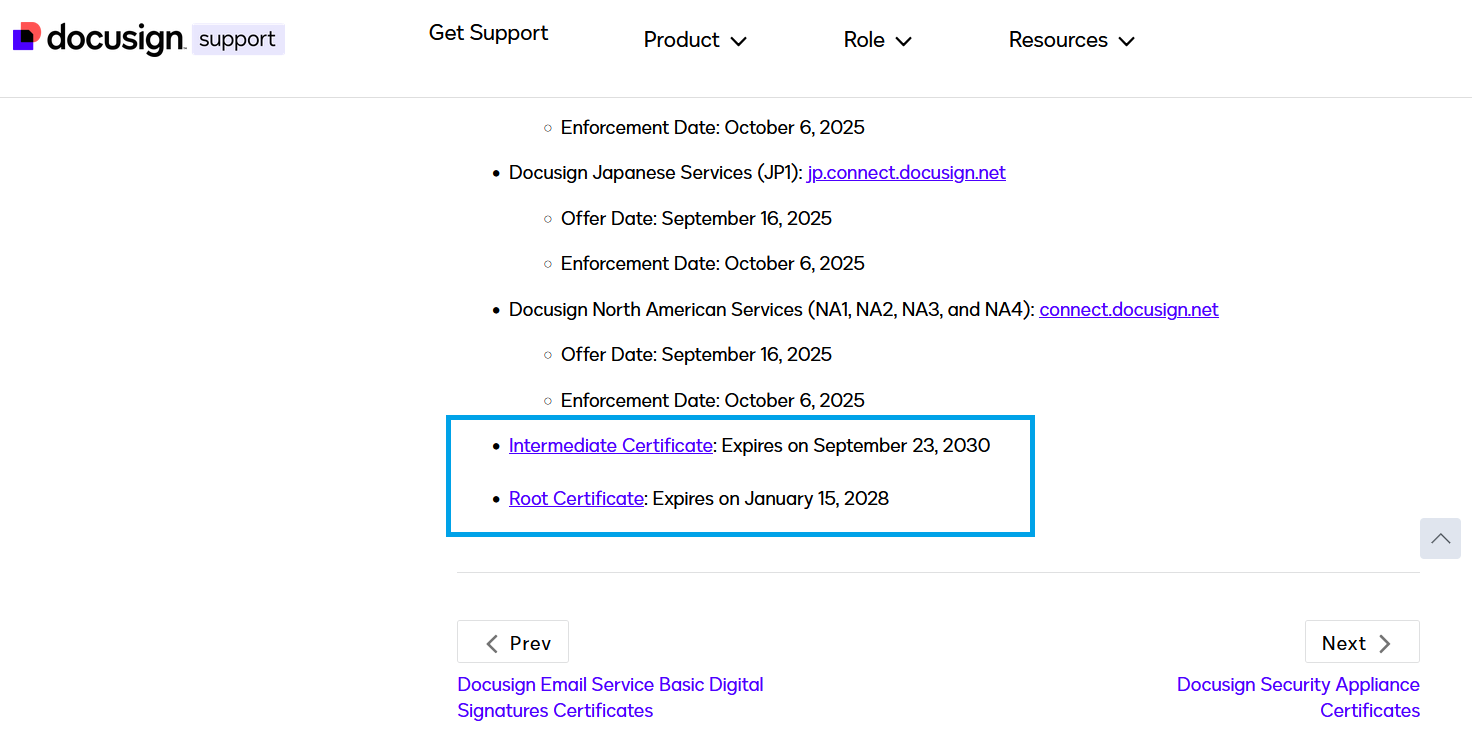
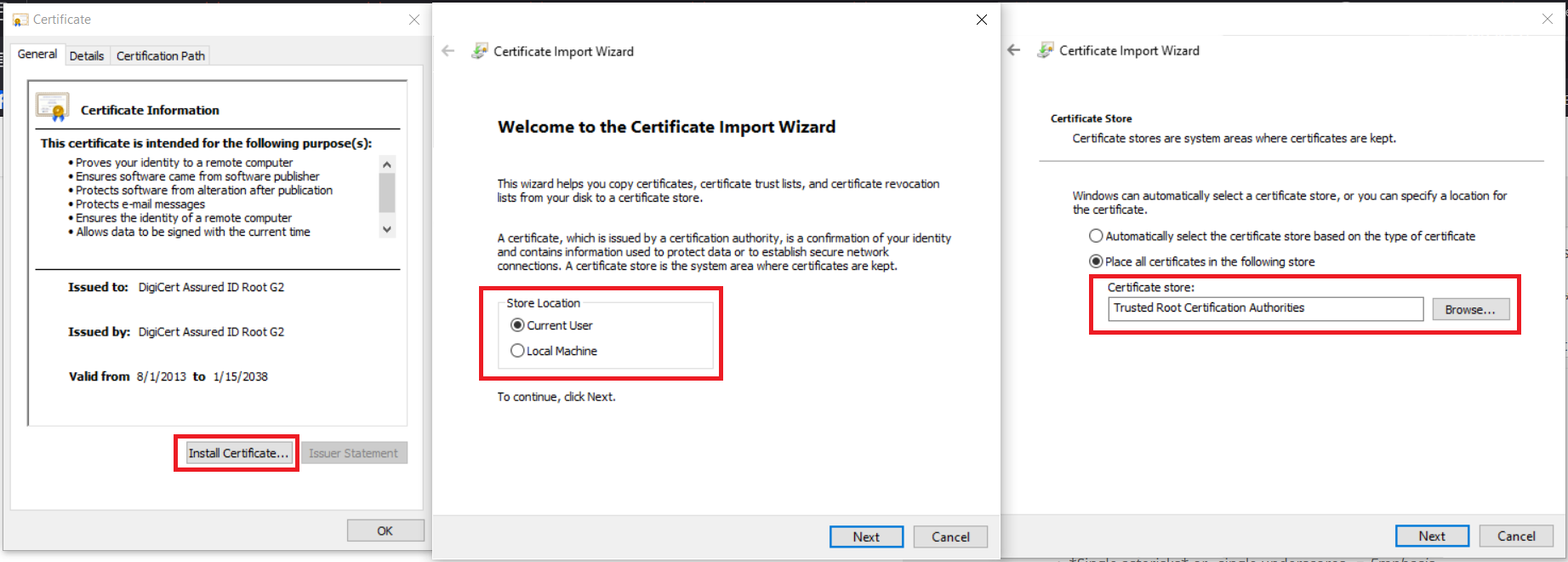
Step 2. Installing the certificates is self-explanatory.
Make note of the store in which you install the certificates, that is usually Trusted Root Certification Authorities for the Trust Anchor and Intermediate Certification Authorities for the Issuer certificate. Use of custom certificate stores is supported.
Make note of the Store Location as well, it is either Local Machine or Current User.
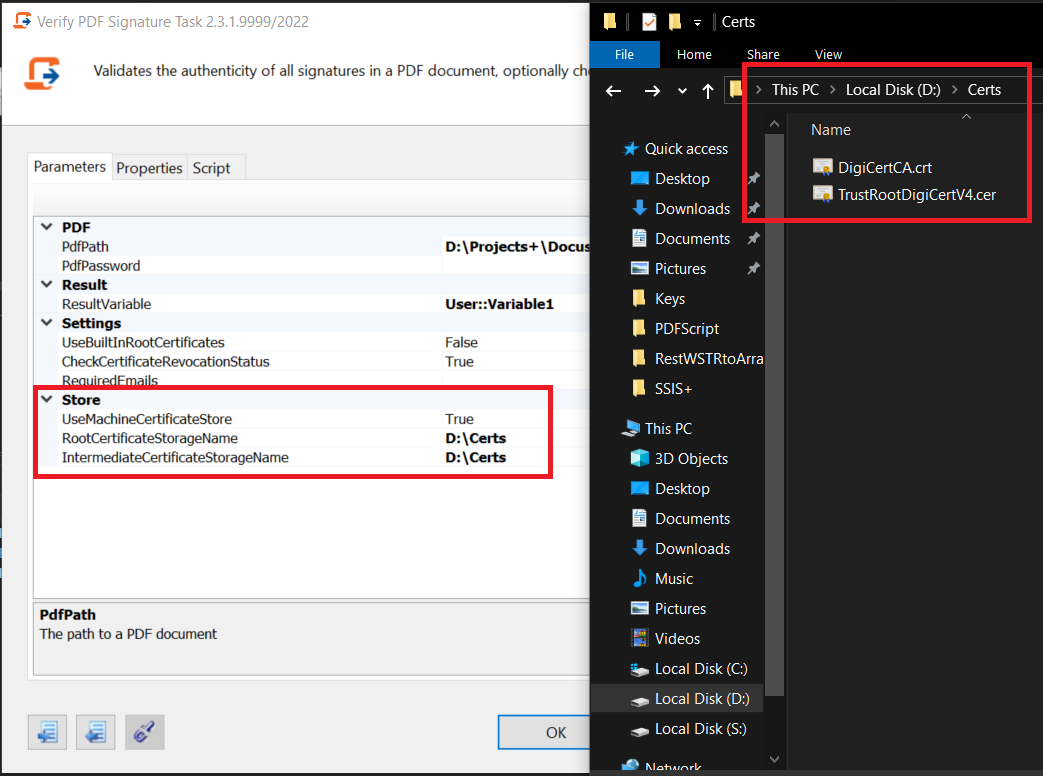
Alternatively, you can just place all vendor certificates in one directory and use that for the Task, more on that in the next section.
Step 2.1. Using a simple directory as the certificate storage instead. Just paste the certificate files inside a folder and specify it as the source of certificates in the Task.
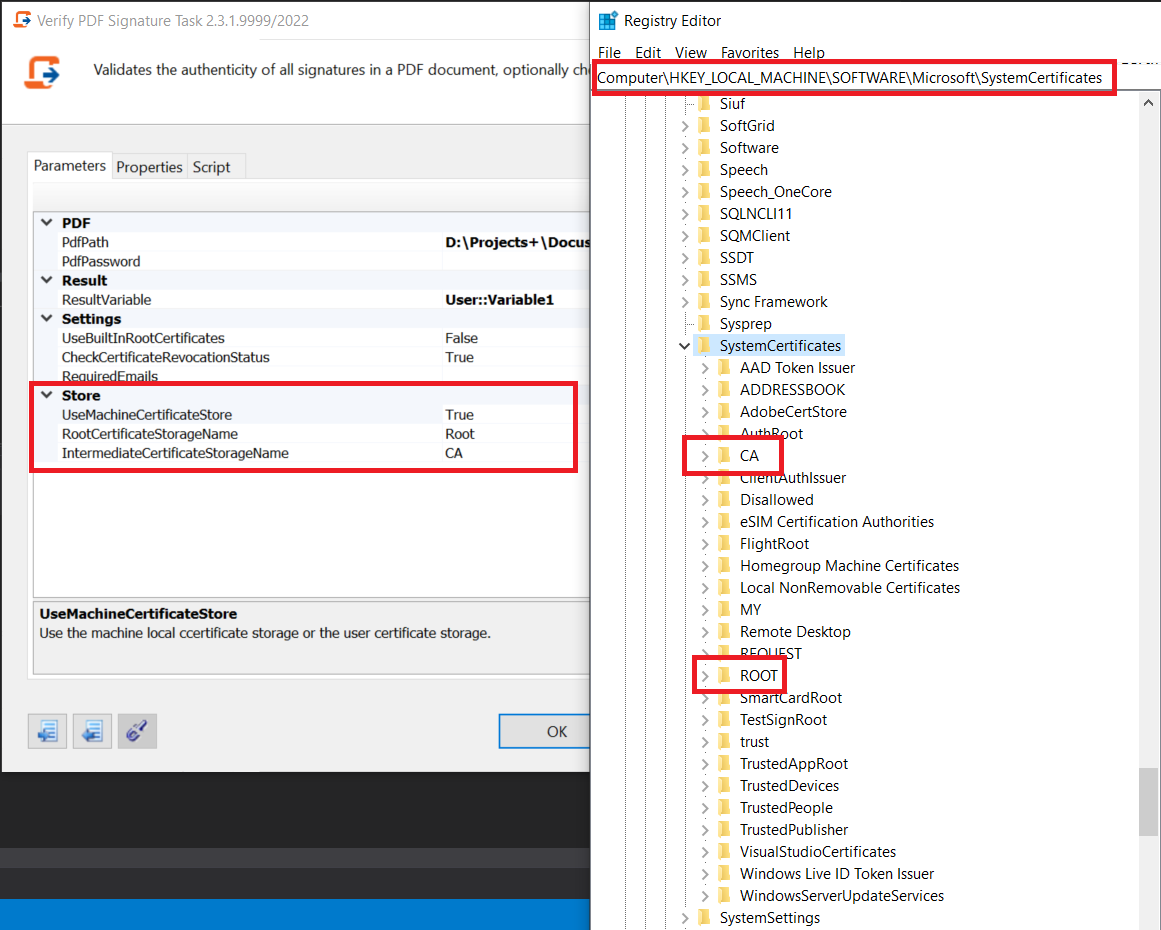
Step 3. In Registry Editor with directory such as:
- HKEY_CURRENT_USER\Software\Microsoft\SystemCertificates
- HKEY_LOCAL_MACHINE\Software\Microsoft\SystemCertificates
You will find the registry names of the stores, this is the value you have to use in the Task. The example image provided specifies Local Machine as the location and store names of CA and Root.
We will discuss some of the settings you may use with the task.
Important: The task will always succeed, please use the result variable to determine if a document has been tampered with and the logs to determine what kind of failure has occurred.
Step 1. Tuning the task parameters:
-
CheckCertificateRevocationStatus - when set to true the task will perform an OCSP check for the revocation status of every signature, if that fails a CRL check will be performed, if that fails as well the result variable will be set to false, just like it would be for an unsuccessful chain building and an error will be logged as a warning. We recommend setting true.
-
UseBuiltInRootCertificates - if set to true and the signature contains both an Intermediate and Root, the Root certificate will be treated as installed locally and trusted. We recommend setting to false.
-
RequiredEmails - an array of emails, upon each signature verification, the signers email will be knocked off from the list. If any emails remain the result will be false and an error will be logged.
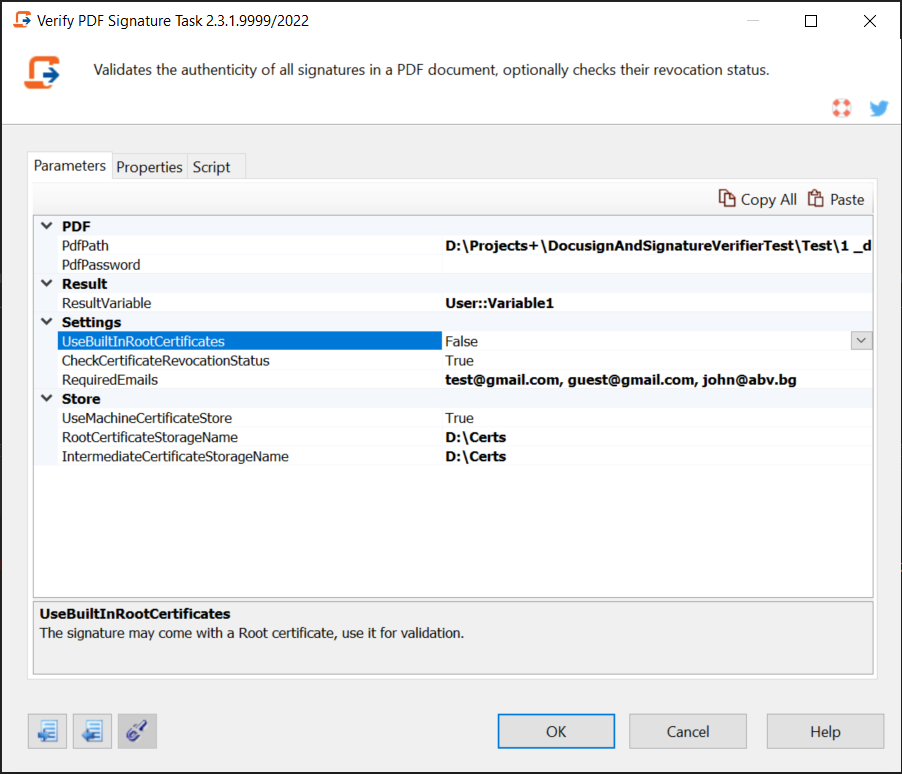
Good job! You are now ready to use the Verify PDF Signature Task
Configuration
To use this script, you would need to load it in COZYROC JavaScript Task. If you are using COZYROC SSIS+ 2.0 or later, after selecting the corresponding script type and opening the component editor, you can select the script from a dropdown list with the pre-built scripts. For COZYROC SSIS+ 1.9, you can download the JavaScript file and browse to it via the "Import JavaScript code" button.
 Verify_PDF_Signature_Task.js
Knowledge Base
Related documentation


COZYROC SSIS+ Components Suite is free for testing in your development environment.
A licensed version can be deployed on-premises, on Azure-SSIS IR and on COZYROC Cloud.